 InspectDev
How to Edit Text on Any Webpage in Your Browser
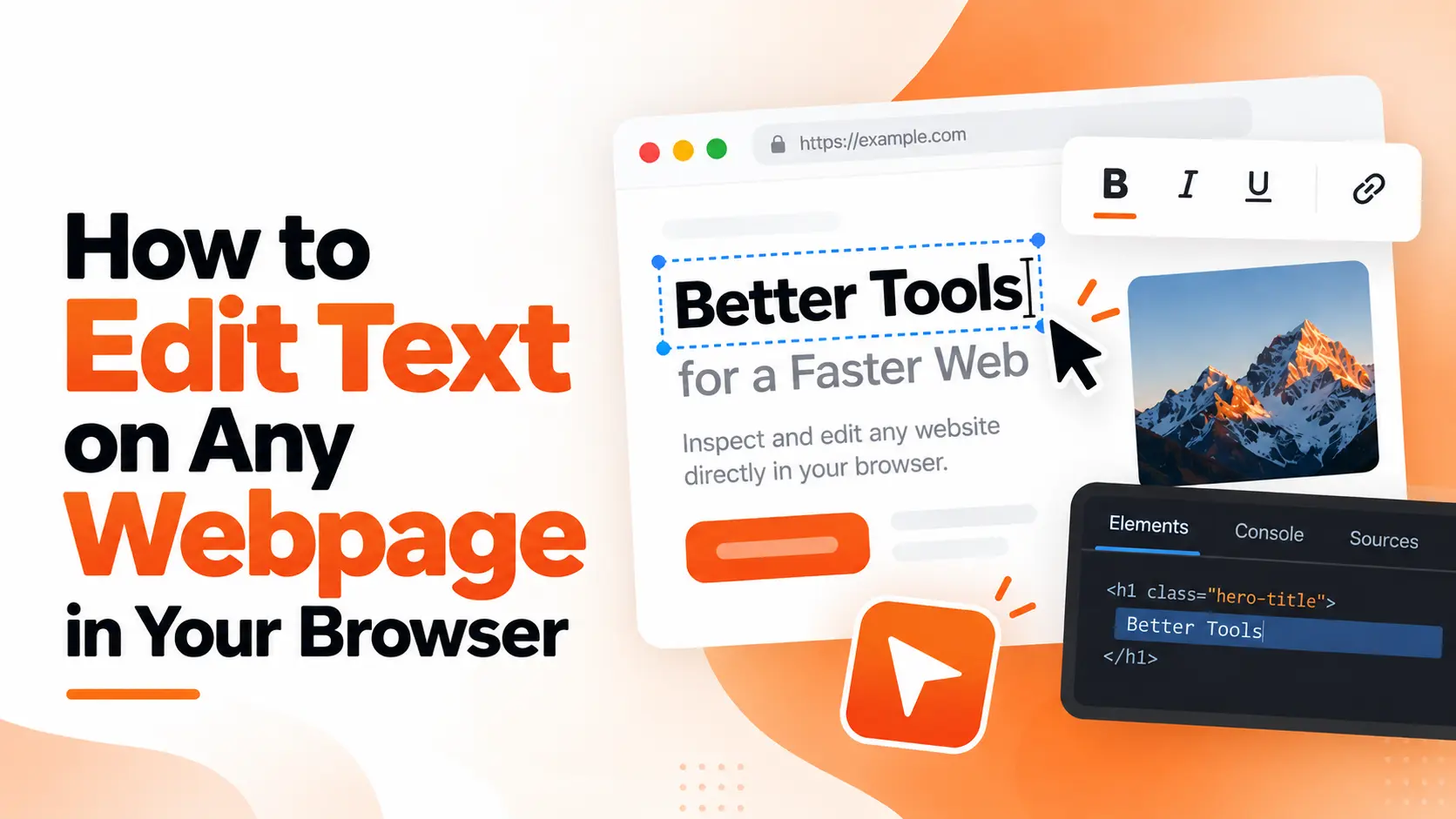
You spot it immediately. A typo in the hero headline, a price that reads wrong, a button label that's too long for its box. Fixing it properly means editing source, opening a pull request, waiting for review and a deploy — all to change four words. So instead you take a screenshot, draw a box around it, and describe what you meant.
There's a faster way: change text on a webpage directly in the browser, on the live page, and look at it. This guide covers how browser text editing actually works, the three ways to do it in any browser, and how InspectDev's Live Text Editor turns it into a click-and-type action.
Key takeaways
- Browser text editing works because of
contenteditable, an HTML attribute supported across all major browsers since 2015 — no extension or framework required at the platform level. - Edits happen in the DOM, not in the file. Nothing is saved to a server, and a reload always restores the original page.
- DevTools and bookmarklets can do it, but only a purpose-built tool gives you per-element editing plus bold, italic, and link controls.
- It's a preview and review tool, not a CMS. Use it to decide what the copy should say before you commit engineering time to making it real.
What "editing text on a webpage" actually means
Every page you open is a document in memory — the DOM — that the browser builds from HTML and paints to the screen. When you edit text in the browser, you're not changing a file. You're changing the text node inside that in-memory document, and the browser immediately repaints it. In effect, the page becomes a temporary webpage text editor, one where nothing you type is saved.
The mechanism is a standard HTML attribute called contenteditable, which tells the browser to make an element's contents editable in place. It's been widely available across browsers since July 2015, so this isn't a hack that depends on one browser's developer tools (MDN). The value can be true for rich text, plaintext-only to strip formatting, or false to opt back out.
That last point is the one people trip over: the change is real enough to screenshot, measure, and show a client, but it's not saved anywhere. Close the tab and it's gone.
Why edit text in the browser instead of shipping a change
Because for most teams, shipping a small copy change is slow. A one-word fix still travels through version control, review, and a deploy pipeline. DORA's 2025 report, which surveyed nearly 5,000 technology professionals, found 43.5% of teams take more than a week to move a change from commit to production, and only 9.4% ship in under an hour (DORA 2025, via Research-Driven Engineering Leadership, October 2025).
That gap is fine for code. It's painful for copy, which you often can't evaluate properly until you see it in place. Editing in the browser closes it: you get the real layout, the real font, and the real line breaks, now.
The ability to edit website text in place, then screenshot the result, is also how most teams actually review copy. Structured experimentation is rare — BuiltWith's technology tracking puts A/B testing or experimentation platforms on roughly 0.2% of all websites, and adoption only climbs as sites get bigger (BuiltWith, via Convert, 2026).
When you're not running a formal test, review comes down to judgment — and judgment works better with the real thing in front of you than with a description of it.
Three ways to edit text on a live page
All three work in Chrome, Edge, Firefox, Brave, and other modern browsers. They differ in how much control you get. If you just want to edit text on a webpage without learning DevTools, the third option is the one to reach for — but it helps to know what the first two can and can't do.
DevTools. Open DevTools, find the element in the Elements panel, and double-click its text to edit it. It's exact, and it's already there. It's also tedious for anything longer than a short string, and you can only edit one node at a time.
A JavaScript bookmarklet. The classic one-liner toggles editing for the whole page:
javascript:document.body.contentEditable = 'true'; void 0;Save it as a bookmark and click it on any page. It's fast and dependency-free, but blunt: everything becomes editable, including navigation, and there's no formatting UI.
A browser extension. A tool that knows which element you clicked can make just that element editable, give you formatting controls, and leave the rest of the page alone. That's the difference between a debug trick and something you'd hand to a copywriter.
| DevTools | Bookmarklet | Extension | |
|---|---|---|---|
| Setup | Open DevTools each time | Save a bookmark once | Install once |
| Making text editable | Find the element, double-click | Toggles the whole page | Click the text you want |
| Bold, italic, and links | No | No | Yes |
| Editing scope | One node at a time | Entire body | One element at a time |
| Risk of changing the wrong thing | Low | High | Low |
| Reverts on reload | Yes | Yes | Yes |
How InspectDev's Live Text Editor works
Live Text Editor is a browser text editor that works on the page you're already looking at. Click a heading, a paragraph, a link, or a button, and it becomes editable in place — no DevTools, no markup, and no limit to a single browser.
What it does:
- Click to edit. Any text element becomes editable where it sits, with a clear editing state so you can tell what's live.
- Formatting controls. Bold, italic, and link tools appear while you're editing, so you can restyle a line without touching the markup.
- Instant preview. Changes render immediately in page context, using the real fonts, spacing, and layout — which is the whole point, because copy looks different in production than in a text document.
- Non-destructive. Click outside the editor or press Escape to finish. Reload the page and everything returns to normal.
Because it runs in your own browser, it works on pages you can't send to an online preview tool: staging environments, intranet sites, and anything behind a login.
Step by step: edit text on any webpage
- Add InspectDev to your browser. It runs in Chrome, Edge, Brave, and other Chromium-based browsers, plus Firefox.
- Open the page you want to review, in the state you want to review it — signed in, in the right locale, at the right viewport.
- Open Live Text Editor from the InspectDev toolbar.
- Click the text you want to change. It becomes editable in place.
- Type the replacement. Use the formatting controls for bold, italic, or links.
- Click outside or press Escape, and keep editing other elements until the page reads the way you want.
- Reload when you're done to get the original page back.
If the change is bigger than copy — moving a button, hiding a section — pair it with Move / Delete to rearrange the layout, and CSS Inspector to adjust spacing while you're there. The whole edit stays local to your browser.
Editing more than paragraphs
Real pages aren't only headings and paragraphs, and the awkward parts are the ones people ask about most.
- Links. Editing a link's label changes the text, not the destination. The
hrefstays exactly where it was — usually what you want in a copy review, but don't mistake it for rewiring the link. - Buttons and form labels. These are text nodes like any other, so they're editable. They're also where length problems surface first: a two-word change can push a label past its container.
- Placeholders and input values. A placeholder is an attribute, not a text node, so it may not respond to inline editing. Change the surrounding label instead, or use DevTools for attributes.
- Alt text. Alt text isn't rendered visually, so there's nothing on the page to click. Review it with an SEO Meta pass alongside your title and description tags.
The rule of thumb: if it's visible text in the current document, you can edit it. If it's an attribute, an image, or a different document, you can't.
Where live text editing fits in a real workflow
Copy review with stakeholders. Edit the headline on the actual page, in the actual design, and screenshot it. Nobody has to imagine what it will look like, and you skip a round of "can you mock that up?"
Writing copy variants to length. The constraint on web copy is rarely the word count — it's the container. Editing in place shows you immediately whether a headline wraps to three lines or a button label overflows.
QA and proofreading. Reading a page in the browser is how you catch the typo that survived the CMS. Editing it on the spot lets you verify the fix reads correctly before you file it.
Demos and training. Present a page with realistic content instead of a placeholder-filled sandbox, and adjust on the fly when someone in the room asks what it would say.
Fast mockups. Client-side edits are the lowest-fidelity, lowest-cost way to answer "what if this copy said X instead?" before anyone commits to building it.
What it can't do (and when to use something else)
Edits aren't saved. This is a preview, not a CMS. If you need the change to persist, copy your new text into the source or CMS — the browser session is throwaway by design.
Some text isn't editable. Text baked into an image or drawn to a <canvas> has no text node to edit. Neither does text inside a cross-origin <iframe>, which is a separate document.
Single-page apps can overwrite you. If a framework re-renders a component, your edit to that component may disappear. Edit after the page has settled, and re-edit if a navigation replaces the view.
It doesn't fix accessibility. Editing text changes what's displayed, not whether the page is usable. Contrast, focus order, and semantics are separate concerns — run an accessibility audit if that's what you're actually checking.
Frequently asked questions
Can I save the text I edit on a webpage?
No — in-browser edits live in the DOM and disappear on reload. Use them to decide what the copy should say, then make the change in your CMS or source.
Does editing a page affect SEO or other visitors?
No. You're modifying a local copy of the page in your own browser. The server, the search index, and everyone else's view are untouched.
Which browsers does Live Text Editor work in?
Chrome, Edge, Brave, and other Chromium-based browsers, plus Firefox. It isn't limited to one browser, and it works on any text element the page renders as real text.
Why can't I edit text in an image or inside an iframe?
Those aren't text nodes in the current document. Text in an image is pixels, and an iframe is a separate document with its own origin. contenteditable only applies to elements in the document you're editing.
Is this the same as editing the HTML?
Not quite. You're editing rendered text nodes, not source markup. If you want to change structure or attributes, use the CSS Inspector or DevTools instead.
The short version
Editing text on a webpage doesn't require a deploy, a CMS login, or a single browser's developer tools. contenteditable is a standard part of the web, and it means any page can become editable in your browser — temporarily, locally, and without touching the server. Use that to review copy in context, test whether a headline fits, and show people the change instead of describing it.
When you're ready to try it, open the Live Text Editor. For more on what else you can inspect and edit in place, see what InspectDev includes, or start with the website inspection workflow.