 InspectDev
How to Check Meta Tags on Any Website
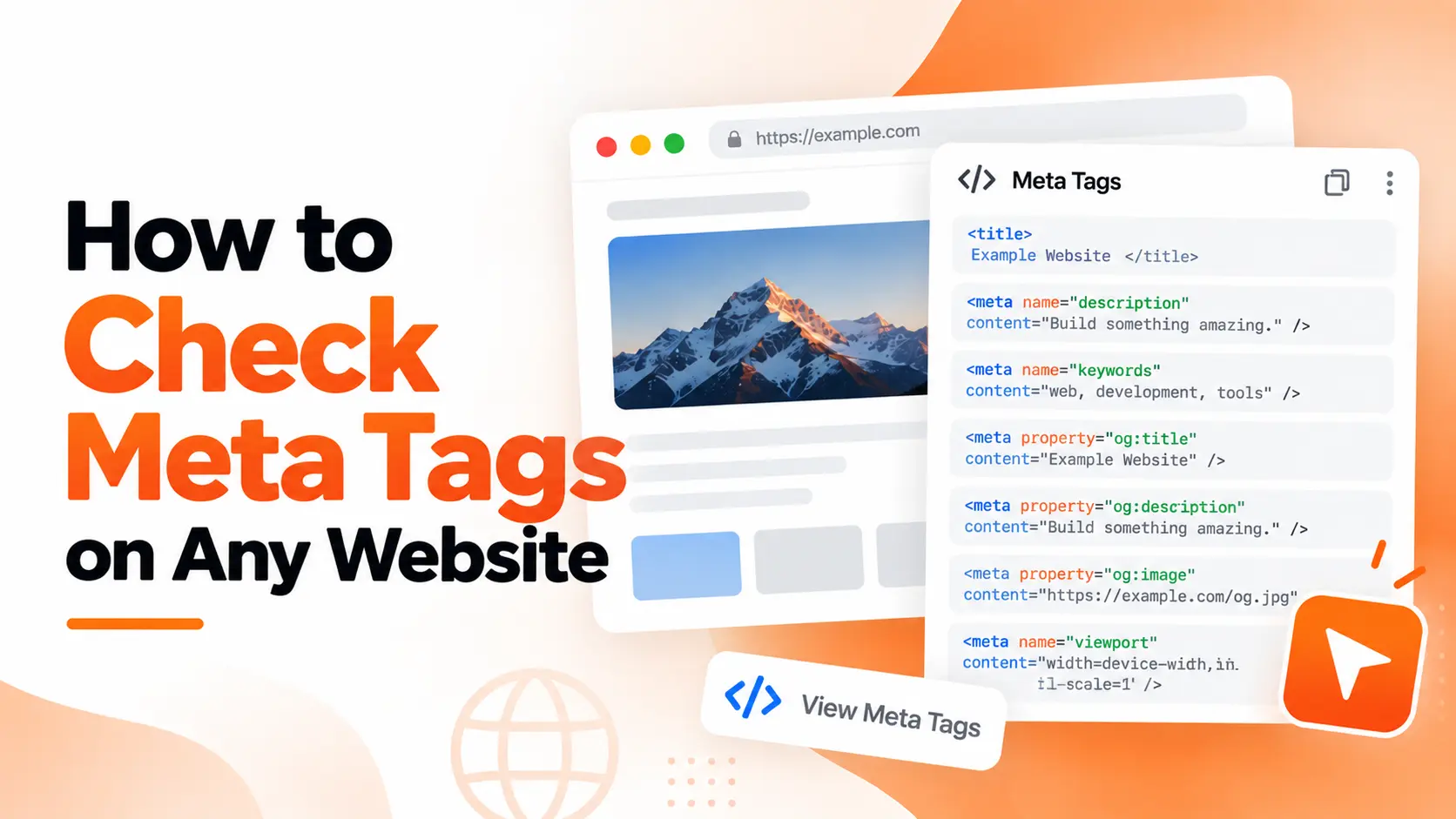
A page can look completely fine and still be broken where it counts. The title in the browser tab isn't what Google shows. The social preview is a blank grey box because og:image is missing. A leftover noindex from a staging environment is quietly keeping the whole page out of search.
None of that is visible on the rendered page, because it all lives in the <head> — the part of the document you never see. This guide covers what meta tags actually are, why they matter more in an AI-driven SERP, how to check each important one in Chrome, and how InspectDev's meta inspector surfaces the whole head in a single view.
Key takeaways
- Meta tags live in
<head>and control how a page appears in search results and social previews, and whether it can be indexed at all. - The five to check on every page: title, meta description, Open Graph and Twitter tags, robots directives, and
rel="canonical". - Chrome shows you raw HTML, the rendered DOM, and HTTP headers through different tools — no single view covers all three.
- Google rewrites hardcoded meta descriptions about 63% of the time (Ahrefs, 20,000 keywords), so treat yours as strong raw material, not a guaranteed snippet.
What are meta tags?
Meta tags are <meta> elements in a page's <head> that describe the page to machines — search engines, social platforms, and AI assistants — rather than to the people reading it. The title tag and the canonical link sit in the same <head> and do related jobs, which is why "check the meta tags" is really shorthand for auditing the whole head.
They fall into five groups:
- Title and description —
<title>and<meta name="description">, the page's headline and summary in search results. - Social metadata — Open Graph (
og:*) and Twitter Card (twitter:*) tags that decide how a shared link renders. - Indexing directives —
<meta name="robots">, plus theX-Robots-TagHTTP header, which tell crawlers whether to index a page, follow its links, or show a snippet. - Canonicalization —
<link rel="canonical">, which nominates the preferred URL when several point at the same content. - Everything else — viewport for mobile rendering,
theme-color,hreflang, and structured data such as JSON-LD.
Why meta tags matter
They shape three things you can't see on the page: your search snippet, your social preview, and whether the page is indexed at all.
Search snippets are partly yours. Google primarily builds snippets from page content and may also use your meta description when it describes the page better (Google Search Central). In practice it often does neither exactly as written: Ahrefs analysed 20,000 keywords and found Google rewrites hardcoded meta descriptions 62.78% of the time, and more often for long-tail queries than head terms. Titles are rewritten too, because Google assembles title links from several sources — the <title>, the og:title, headings, and anchor text (Google Search Central). The goal isn't exact control; it's giving Google accurate raw material to rewrite from.
Social previews are entirely yours. An og:title and og:image decide whether a shared link shows a card or a bare URL. The difference shows up in engagement: a 2024 INMA study found Facebook posts with images earned 100% more engagement and 114% more impressions than posts without (Semrush).
Indexing is a switch, not a suggestion. A stray noindex is the single most expensive meta tag mistake — the page is crawled, understood, and then deliberately left out of results.
That last point is getting more consequential. Seer Interactive's analysis of 3,119 informational queries found organic click-through rate fell from 1.76% to 0.61% — a 61% drop — on searches where an AI Overview appeared (Search Engine Land, September 2025). When fewer clicks are on offer, the metadata that decides which links get chosen matters more, not less.
How to check meta tags in Chrome
Chrome gives you four views of the same page, and they don't agree with each other. That's the point: raw HTML, the rendered DOM, and HTTP headers each tell a different part of the story.
View page source
Press Ctrl+U (Cmd+Option+U on macOS) and search for <meta, <title>, og:, or canonical. This shows exactly what the server sent. It's the only reliable way to see whether a tag is present in the initial HTML — which matters, because most social crawlers don't execute JavaScript.
DevTools Elements panel
Open DevTools, find the <head> element, and read the live DOM. This shows what actually exists after JavaScript has run, including tags a framework injected at runtime. Compare it against View Source: if og:image appears here but not there, social platforms may never see it.
DevTools Console snippets
One-liners answer specific questions fast:
document.title
document.querySelector('meta[name="description"]')?.content
document.querySelector('meta[name="robots"]')?.content
document.querySelector('link[rel="canonical"]')?.href
[...document.querySelectorAll('meta')].map(m => m.outerHTML)
This is scriptable and precise, but you have to know what to ask for — it won't tell you what's missing.
The Network tab
Open the document request and check Response Headers. This is the only view that shows X-Robots-Tag, which can apply noindex to PDFs, images, and other non-HTML resources where a <meta> tag can't exist (Google Search Central).
| Check | View Source | DevTools Elements | Console | Network tab |
|---|---|---|---|---|
| Raw server HTML | Yes | No | No | Partial |
| Rendered DOM | No | Yes | Yes | No |
HTTP headers (X-Robots-Tag) |
No | No | No | Yes |
| Flags missing or duplicate tags | No | No | No | No |
| Works on staging or logged-in pages | Yes | Yes | Yes | Yes |
If you're auditing a whole site rather than one page, this page-by-page approach gets old quickly — that's a job for a website audit workflow.
How to check the title and meta description
Find the tags, then judge them by what Google would show, not by a hard character count. Google truncates both title links and snippets to fit the device width and sets no official length limit, so any "155 characters" rule is a heuristic, not a requirement.
What to look for:
- A title exists and is unique. Ahrefs analysed 953,276 pages and found 7.4% of pages ranking in the top 10 results had no title tag at all.
- A practical length. Zyppy's analysis of 81,000 title tags put the sweet spot at 50–60 characters, or roughly 580–600 pixels on desktop.
- A description that describes the page, not a keyword list. Ahrefs puts the useful range at about 160 characters for desktop and 120 for mobile.
- No duplicates. Google's guidance is explicit: identical descriptions across pages aren't helpful when individual pages appear in results.
How to check Open Graph tags
Open View Source and search for og:. If the required properties are missing or point at the wrong URL, link previews break — often silently, because the page itself looks perfect.
The Open Graph protocol requires four properties: og:title, og:type, og:image, and og:url (ogp.me). In practice you'll also want og:description and a twitter:card set to summary_large_image with a matching twitter:image.
Three things break most often:
- A relative
og:imagepath. It must be a full absolute URL, or platforms can't fetch it. - The wrong size. 1200×630 is the safe default; smaller images get cropped or dropped, and many platforms ignore anything under roughly 200×200.
- Tags injected by JavaScript. Most social crawlers read the initial HTML only, so a client-rendered
og:imagemay as well not exist.
The fastest way to check all of this is to render the preview rather than read the tags. Facebook's Sharing Debugger and LinkedIn's Post Inspector are the canonical testers, and InspectDev's social preview shows Facebook, Twitter, and Slack cards side by side from the page's own tags.
How to check robots meta tags
Search the head for <meta name="robots">. If it contains noindex, the page is telling search engines not to show it — and no amount of good content will override that.
The rules worth recognising (Google Search Central):
noindex— don't show this page in search results.nofollow— don't follow the links on this page.none— shorthand fornoindex, nofollow.nosnippet— don't show a text snippet. Since 2026 this also prevents the content from being used as direct input for AI Overviews and AI Mode.max-snippet,max-image-preview,max-video-preview— caps on how much can be shown.
Two details that cause most of the confusion:
Raw versus rendered. A framework or CMS plugin can add noindex at runtime. Always confirm in both View Source and the live DOM.
Conflicts and blind spots. When rules conflict, the more restrictive one wins — and noindex does nothing if the URL is blocked in robots.txt, because Google never crawls the page to find the tag. The same directives can also arrive as an X-Robots-Tag HTTP header, common for PDFs and images, which only the Network tab will show you.
It's also worth knowing how often this is done badly. The 2024 Web Almanac, which analysed 16.9 million pages, found the two most-used robots directives were follow and index — neither is a valid directive, and Google ignores both (Web Almanac 2024).
How to check canonical tags
Look for <link rel="canonical" href="..."> in the <head>. It should be an absolute URL, name the preferred version of the page, and on the canonical page itself point back to that same URL.
Google treats rel="canonical" as a strong hint rather than a command, and ranks it below redirects in strength (Google Search Central). What to verify:
- Absolute, not relative. Google supports relative paths but recommends avoiding them, since they break if a staging host gets crawled.
- Self-referential on the canonical page. Google explicitly recommends including it.
- Consistent with everything else. Don't declare one URL in a sitemap and another in the tag, and don't mark a URL
noindexwhile also canonicalising to it. - Identical in raw and rendered HTML. The Web Almanac found fewer than 1% of pages disagreed between the two — but one in 50 mobile pages had its canonical changed during rendering, so check both before you trust it.
Canonical usage reached 65% of pages in 2024, the first year it was applied equally on desktop and mobile (Web Almanac 2024). The remaining third either leave Google to pick a canonical on its own or point at nothing at all.
How InspectDev's meta inspector helps
Everything above works, but it's four tools, a console snippet, and a judgment call for every tag. InspectDev's SEO Meta tool does the collection and the flagging in one panel that opens on the page itself.
It shows:
- Meta overview — every
<meta>tag grouped by purpose (title, description, robots, viewport, keywords), with missing and duplicate tags flagged automatically. - Social preview — renders your page as a Facebook, Twitter, and Slack card from the tags it finds, so a missing or wrong
og:imageis obvious before you share anything. - Structured data — parses JSON-LD, Microdata, and RDFa and checks it against Schema.org, which is where title and description values also live.
Because it runs inside the page, it reads the tags the browser actually has — including ones a framework injected at runtime — and it works on staging URLs and logged-in pages, not just public ones. No console snippets, no switching between four Chrome panels.
Frequently asked questions
Do meta keywords still matter?
No. Google has ignored the meta keywords tag for years and it isn't a ranking factor. If you find one, it doesn't hurt, but it doesn't help either.
Does the meta description affect rankings?
Not directly — it isn't a ranking factor. It influences whether people click, and Google may use it as the snippet. Write it for the click, and expect it to be rewritten about two times out of three.
Why is Google showing different text than my meta description?
Because it rewrites it. In Ahrefs' study of 20,000 keywords, hardcoded descriptions were rewritten 62.78% of the time, and Google prefers on-page content when it better matches the query. The tag is a suggestion, not a setting.
What's the difference between robots.txt and the robots meta tag?
robots.txt controls crawling — whether a bot may fetch a URL at all. The robots meta tag controls indexing and serving — whether a page that was fetched may appear in results. Never use robots.txt to deindex, because a blocked URL can still be indexed without its content.
How do I check meta tags on a page I can't reach publicly?
If it's public, paste the URL into any fetch-based checker. If it's behind a login or on staging, use a browser extension that runs in your own session — it sees the page exactly as you do, headers and all.
The short version
Checking meta tags comes down to three questions: is the tag there, does it say the right thing, and does it survive rendering? View Source answers the first, the live DOM answers the third, and the Network tab catches the headers neither shows. The tags themselves are simple — a title, a description, a social image, an indexing directive, and a canonical — and the mistakes are usually boring ones: a missing tag, a relative image URL, or a noindex nobody meant to ship.
If you'd rather see the whole <head> in one panel — with the problems already flagged — open the Meta Tags Inspector. To see how this fits into a broader review, read our website audit workflow, or start with what InspectDev includes.